Enter your La Trobe email address into the email box (leave the password box blank)
Click on the 'forgot password' link. You'll receive an email which will allow you to set an 8-character password that you'll remember. Your Freedcamp password doesn't have to correspond to your La Trobe password.
Still having problems? Send Annabel an email and we'll troubleshoot :)
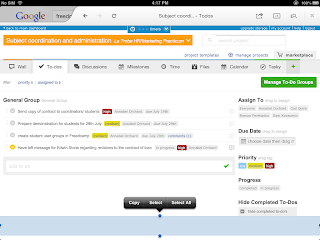
Freedcamp is our favourite web-based project management and collaboration platform. Students from our faculty on work placements will be using it to manage projects, collaborate and reflect on the experience of being in the workplace. And like all our favourite applications and platforms, it's free!
There's a mobile app in the works, but for now you can use it by typing the address freedcamp.com into your browser.
When using video-conferencing app zoom.us on an iPad, iPhone,, Mac desktop or laptop, you can use the inbuilt camera, speakers and microphone, your own headset or your Mac bud earphones with microphone.
If you are using a PC, you may wish to check that your computer has an inbuilt microphone. You may also need a webcam to use video in your call. It is possible, however, to take part in a meeting with just audio.
Select the 'Video Meeting' button to open a meeting window.Put your mouse on the window, and a black menu with icons will appear along the bottom of the window. Select the word "Audio (not the microphone icon). Another window will open.
Select 'Test Speaker/Microphone'. Another Window will open.
Follow the instructions on how to test the speaker. You can go to the video tab at the top of this window to set your camera too.
La Trobe MBA students studying in Hanoi were able to access their BUA5PSD Personal and Professional Skills Development learning materials on their own iPads via iTunes U.
MBA Director Amalia di Iorio says, "Most students had an iPad and were able to download the subject material without any issues. They found the easy access to be extremely valuable in and out of the classroom".
This first step will inform the development of blended learning materials for the iTunes U MBA Pilot Project which will roll out in 2014.
FBEL's Work-Integrated Learning team Gail Quirk and Marnie Long are exploring the potential of mobile devices for students on work placements.
Students in MKT3MPR Marketing Practicum, MGT3MPH MAnagement and HRMN Practicum and ACC3AWP Accounting Work Placement are being equipped with iPad minis and a suite of free apps.
Subject coordinator Margaret Salter and Marnie Long have integrated iPads into the assessment of ACC3AWP Accounting Work Placement, and students will be using Freedcamp and Zoom for communication, formative assessment and reflective practice.
Zoom.us is our favourite free video conferencing app. It is Cloud-based, can be used on PC, Mac, iPad, iPhone and Android devices. It's very simple to use - search for the free app from the AppStore or browser, download the app and you can start straight away.
Users can register or log in with Facebook or Gmail. Click a button to start a meeting, then send an email from within the app to invite up to 24 individuals or rooms. They can join by downloading the app, then either clicking the email link, following a web link or going to the front page and entering a the meeting ID.
The host can share their screen or allow another participant to do so, record the meeting to their desktop, and turn the participants' microphones on or off to according to their needs. With their microphones on, participant can join discussion freely, and can also text-chat with the group or individuals.
The quality of the audio and HD video is very good and we've found it to be stable with no drop-outs and few shudders. It's great for group discussions or if you have to join a meeting remotely. A great tool for students and teachers. And did I mention it's free? Happy to recommend!
and the "90 Second Academic Technology Update" from Professor Adam Scott Wandt from the City University of New York has some ideas for using Zoom.us in learning and teaching.
Having trouble with audio or video using Zoom on your PC? Try this to check your settings.
Replace PowerPoint presentations with HaikuDeck and get your students to do the same!
A touch on the PR/marketing side, but this HaikuDeck blog has some great ideas for how HaikuDeck can be used in the classroom. HaikuDeck searches for images that use Creative Commons licenses (other copyright-protected images are also available in the app as well) and thus are free to reuse. This presents a good opportunity to introduce the concept of copyright to your students, but enable them to find images on the web that they are allowed to reuse in their own work.
In fact, here's a HaikuDeck presentation I put together on how to search for Creative Commons images using Google image search. You can use this as a guide to do what HaikuDeck does and replicate it in a known presentation platform (e.g. PowerPoint, Keynote, etc.).
The app developers are currently trialling a web version of the app, so eventually this approach can be taken with any class, regardless of the technology the students have access to.
Even if you don't want to use or encourage your students to uses this app, the blog has a list of tips for improving presentations. Perhaps you can find a way to reinvigorate your lecture slides? If you do, please share!
If you have any questions about Creative Commons and copyright, email Ruth Jelley.
The STiLT (Student Technology Leadership Team) site is great for first-time users and more experienced students. It features:
General Information: start at step one, with instructions on setting up your iPad, creating Apple IDs, backing up and restoring setting, and introducing the Cloud
Apps: find out about useful apps for education, such as Explain Everything, DropBox, Google Drive, Pages and more
It's written in a very useable and respectful style. The target audience
is high school students, but I'm recommending this site to our students, our staff and to my
mum!
Nice one guys!- I'm looking forward to the forthcoming 'Use iPads to...' section.
The authors surveyed students over two years to monitor their attitudes and usage of eTextbooks prescribed for their courses/subjects. I found this article enlightening for a number of reasons, including its demonstration of different types of arrangements for eTextbook provision for students. Both publisher suppliers in this study, while requiring students to subscribe to access the texts (presumably for a fee), they provided enduring access for the students after the completion of their studies. Perpetuity of resources being a particular interest of mine in this field, this grabbed my attention.
I'm sure many who have been involved in the MLDP trial will gain some insight of their own from this article, hence I am sharing with the group here.
SlideShark is a free mobile app to show PowerPoint presentations from the iPad, iPhone, and iPod touch. It keeps the animations, fonts, graphics, hyperlinks and videos intact while running from your iOS devices.
Key features: * 100 MB of online storage free (with option to buy more). * Offline access to presentations. * You can see your slide notes, timers, animation counter and next/previous slides when presenting from your iPad. (by Nauman)
Doceri is a free professional iPad interactive whiteboard and screencast recorder with sophisticated tools for hand-drawn graphics and remote desktop control.
I just tried some of its features and they look fabulous. This app has got 5 stars in the App Store...
Here's an nice review of this app: http://tinyurl.com/DoceriReview
iBook created following the Symposium by Sarah Midford
On Friday 28 June the eLearning team joined with a team from Apple to conduct a one-day staff development symposium on the use of mobile learning devices at the city campus at 360 Collins St. This symposium included sessions on iBooks, iTunes U and apps for teaching and learning, and was attended by academic and professional staff from all faculties as well as ICT. After the positive feedback to this symposium, we're planning our next event! Stay (i)Tuned for the FBEL eLearning team's favourite apps for teaching and learning, as featured in the Musical Chairs session at the Symposium- we'll be posting a brief introduction and our reviews here on the blog.
I came across this article about Stephen McFarlane's 12-year journey through undergraduate education. In this time, McFarlane has seen many changes in the use of technology in education in the USA. I found this article interesting for three reasons: the history of technology in tertiary education, McFarlane's persistence in studies through numerous challenges, and the opportunities and need for developing lifelong learning skills that this story demonstrates.
When considering the use of the educational technologies, it often becomes relevant to remind ourselves of the importance of putting the pedagogy first. We often want to start by considering the kinds of educational outcomes we're looking for, and move from this to the technology that best suits this outcome.
Alan Carrington from Adelaide University has created a useful tool for thinking about educational outcomes in terms of Graduate Capabilities, verbs from Bloom's Taxonomy, and the SAMR model on a wheel, with iPad Apps in the relevant quadrants. See the Padagogy Wheel below, and check out his Youtube video introducing this idea.
A number of people have reported problems trying to get access to attachments such as PDFs through the La Trobe LMS when using their iPad.
There is a simple solution to this problem, but you have to make sure you are viewing the LMS using the right theme designed for mobile use! Scroll all the way to the bottom of the page and you will see a link which says: Switch to the recommended theme for my device
Tap on this link and you will see the page reformatted for the iPad.
You will then see a little paperclip icon at the top righthand corner of PDF attachments. Tap on the paperclip to view the PDF, and then tap again in the middle of the PDF to allow opening in another program.
We have created a short video tutorial to step through this process. See this below:




 SlideShark is a free mobile app to show PowerPoint presentations from the iPad, iPhone, and iPod touch. It keeps the animations, fonts, graphics, hyperlinks and videos intact while running from your iOS devices.
 Some rights reserved by Veronica Belmont
 I came across this article about Stephen McFarlane's 12-year journey through undergraduate education. In this time, McFarlane has seen many changes in the use of technology in education in the USA. I found this article interesting for three reasons: the history of technology in tertiary education, McFarlane's persistence in studies through numerous challenges, and the opportunities and need for developing lifelong learning skills that this story demonstrates.

![By Jared Tarbell from Awesometown, United States of America (pizza!) [CC-BY-2.0 (http://creativecommons.org/licenses/by/2.0)], via Wikimedia Commons](https://blogger.googleusercontent.com/img/b/R29vZ2xl/AVvXsEgjjchojf3BCCiHndfEIgW47wRF1shOyky6YgW4mUIk8vz3AOEDTBUzJ78LdTzzAH1vpXo8JcM60ELHezYzf5DksaTxkTv4sHbX78M1IrsXruxV_7BH6kapvOJhBEwhYQb_4lqp35fHcOc/s1600/pizza.jpg "By Jared Tarbell from Awesometown, United States of America (pizza!) [CC-BY-2.0 (http://creativecommons.org/licenses/by/2.0)], via Wikimedia Commons")
 Nick Pawsey has been using PDF Expert: