Showing posts with label apps for teaching and learning. Show all posts

Thursday, October 10, 2013

App review: Freedcamp


freedcamp.com
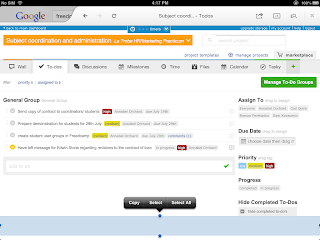
Freedcamp is our favourite web-based project management and collaboration platform. Students from our faculty on work placements will be using it to manage projects, collaborate and reflect on the experience of being in the workplace. And like all our favourite applications and platforms, it's free!

There's a mobile app in the works, but for now you can use it by typing the address freedcamp.com into your browser.

For the ACC3AWP group I've set up group and individual project sites and invited  students and staff to join via your La Trobe email addresses. Take a tour- have fun!

Appstorm's review includes an easy-to-follow introduction to the main features,

Wei Wu's Prezi presentation Freedcamp - the NEW CI communication is a great overview,

and Angel Grablev's YouTube video Freedcamp 2 introduction shows the latest features.


Wednesday, October 9, 2013

How to test your computer's audio to use Zoom.us

When using video-conferencing app zoom.us on an iPad, iPhone,, Mac desktop or laptop, you can use the inbuilt camera, speakers and microphone, your own headset or your Mac bud earphones with microphone.

If you are using a PC, you may wish to check that your computer has an inbuilt microphone. You may also need a webcam to use video in your call. It is possible, however, to take part in a meeting with just audio.

To check your settings for audio:


  • Install and open the zoom.us software. 


  • Select the 'Video Meeting' button to open a meeting window.Put your mouse on the window, and a black menu with icons will appear along the bottom of the window. Select the word "Audio (not the microphone icon). Another window will open.

  • Select 'Test Speaker/Microphone'. Another Window will open.


  • Follow the instructions on how to test the speaker. You can go to the video tab at the top of this window to set your camera too.


Tuesday, October 8, 2013

iPad App Review: Zoom.us

Zoom.us is our favourite free video conferencing app. It is Cloud-based, can be used on PC, Mac, iPad, iPhone and Android devices. It's very simple to use - search for the free app from the AppStore or browser, download the app and you can start straight away.

Users can register or log in with Facebook or Gmail. Click a button to start a meeting, then send an email from within the app to invite up to 24 individuals or rooms. They can join by downloading the app, then either clicking the email link, following a web link or going to the front page and entering a the meeting ID.

The host can share their screen or allow another participant to do so, record the meeting to their desktop, and turn the participants' microphones on or off to according to their needs. With their microphones on, participant can join discussion freely, and can also text-chat with the group or individuals.

The quality of the audio and HD video is very good and we've found it to be stable with no drop-outs and few shudders. It's great for group discussions or if you have to join a meeting remotely. A great tool for students and teachers. And did I mention it's free? Happy to recommend!

Here's the Zoom.us support centre on how to get started.

Here's a YouTube tutorial for using on a desktop,

and the "90 Second Academic Technology Update" from Professor Adam Scott Wandt from the City University of New York has some ideas for using Zoom.us in learning and teaching.

Having trouble with audio or video using Zoom on your PC? Try this to check your settings.

Tuesday, August 20, 2013

iPad App review: HaikuDeck

Replace PowerPoint presentations with HaikuDeck and get your students to do the same!

A touch on the PR/marketing side, but this HaikuDeck blog has some great ideas for how HaikuDeck can be used in the classroom. HaikuDeck searches for images that use Creative Commons licenses (other copyright-protected images are also available in the app as well) and thus are free to reuse. This presents a good opportunity to introduce the concept of copyright to your students, but enable them to find images on the web that they are allowed to reuse in their own work.

In fact, here's a HaikuDeck presentation I put together on how to search for Creative Commons images using Google image search. You can use this as a guide to do what HaikuDeck does and replicate it in a known presentation platform (e.g. PowerPoint, Keynote, etc.).

The app developers are currently trialling a web version of the app, so eventually this approach can be taken with any class, regardless of the technology the students have access to.

Even if you don't want to use or encourage your students to uses this app, the blog has a list of tips for improving presentations. Perhaps you can find a way to reinvigorate your lecture slides? If you do, please share!

If you have any questions about Creative Commons and copyright, email Ruth Jelley.
Friday, July 5, 2013

iPad App review: SlideShark

Screen capture of a PowerPoint presentation in SlideSharkSlideShark is a free mobile app to show PowerPoint presentations from the iPad, iPhone, and iPod touch. It keeps the animations, fonts, graphics, hyperlinks and videos intact while running from your iOS devices. 

Key features:
* 100 MB of online storage free (with option to buy more).
* Offline access to presentations. 
* You can see your slide notes, timers, animation counter and next/previous slides when presenting from your iPad.

(by Nauman)

iPad App review: Doceri

Doceri is a free professional iPad interactive whiteboard and screencast recorder with sophisticated tools for hand-drawn graphics and remote desktop control.

I just tried some of its features and they look fabulous. This app has got 5 stars in the App Store...

Here's an nice review of this app: http://tinyurl.com/DoceriReview

Enjoy...!!!

(by Nauman)

Wednesday, April 10, 2013

What's your favourite PDF editing/annotation app?


Nick Pawsey has been using PDF Expert:
here's some news about the latest features.

See these YouTube demos on PDF Expert:


This review compares PDF Expert 4, iAnnotate 2.1 and GoodReader 3

Most reviews of PDF expert are about the full-size iPad.
If you've used it, how do you find it on the Mini?

Do you have a PDF app to recommend?